
Is your Elementor editor stuck on the loading screen or refusing to open?
This can happen because of an Elementor update, plugin or theme conflict, server settings, low PHP memory, browser extensions, or even your internet connection.
Try the fixes below one by one.
1. Update Elementor and Elementor Pro
First, check if Elementor has a pending update.
Go to:
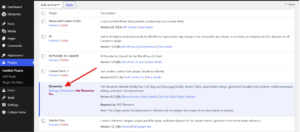
WordPress Dashboard → Plugins → Installed Plugins
Check for updates for:
- Elementor
- Elementor Pro, if you’re using it
Update them and try opening Elementor again.
Tip: Always keep Elementor and Elementor Pro compatible with each other.
2. Enable Elementor Safe Mode
If Elementor is still stuck on loading, try Safe Mode.
Go to:
Elementor → Editor → Tools → Safe Mode
Set Safe Mode to Enable and save the changes.
Then open your page with Elementor again.
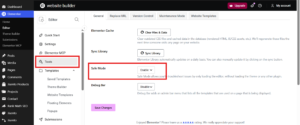
Safe Mode loads the Elementor editor without third-party plugins and theme code, making it useful for identifying conflicts.
What if Elementor loads in Safe Mode?
If Elementor works in Safe Mode but not normally, a plugin or your theme may be causing the problem.
You can then test your plugins one by one.
3. Switch Elementor Editor Loader Method
Still stuck?
Go to:
Elementor → Settings → Advanced
Find:
Switch Editor Loader Method
Set it to Enable and save the changes.
Now try loading Elementor again.
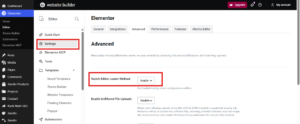
This setting can help when the Elementor editor is having server-level or loading issues.
4. Check for a Theme Conflict
Your theme can also interfere with the Elementor editor.
To test this, temporarily switch to Hello Elementor.
Go to:
Appearance → Themes → Add New
Search for Hello Elementor, install it, and activate it.
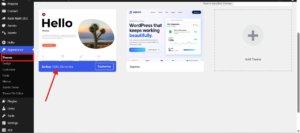
Then try opening Elementor again.
If Elementor works with Hello Elementor, your previous theme may be causing the conflict.
Hello Elementor is a lightweight theme designed to work closely with Elementor, so it’s a good option for testing Elementor-related theme conflicts.
5. Check WordPress Site Health
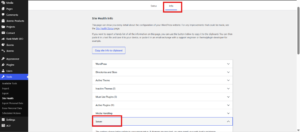
If the problem isn’t caused by a plugin or theme, check your server information.
Go to:
Tools → Site Health → Info → Server
Look for your:
- PHP version
- PHP memory limit
- Max input variables
- Other server information
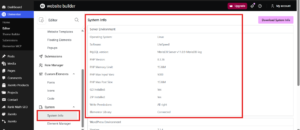
You can also check Elementor’s system information to see whether your WordPress and server environment meet the requirements.
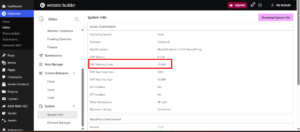
6. Check Your PHP Memory Limit
A low PHP or WordPress memory limit can cause Elementor loading problems.
Elementor currently says that 256 MB is the memory limit for both PHP and WordPress. Higher limits are better for performance. If your memory limit is too low you might need to raise it through your wp-config.php file or hosting settings.
7. Check the Browser Console
If Elementor is still not loading, check your browser console for errors.
Open Elementor and:
Right-click → Inspect → Console
Look for red error messages.
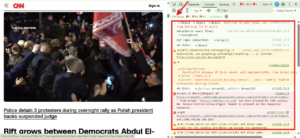
These errors can help identify JavaScript, plugin, theme, or security-related problems that are stopping Elementor from loading.
8. Try Incognito Mode or Another Browser
Sometimes the problem isn’t WordPress at all.
Try opening Elementor in an Incognito/Private window.
You can also try another browser.
If Elementor works there, your browser cache or an extension may be interfering with the editor.
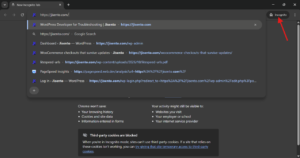
If this fixes the problem, check your browser extensions and disable them one by one.
9. Check Your Internet Connection
Elementor needs a stable connection while loading the editor. If you’re using Wi-Fi, try switching to mobile data. If you’re using mobile data, try Wi-Fi instead.
Then reload Elementor.
Still Stuck on the Elementor Loading Screen?
If you’ve tried all the fixes above and Elementor is still not loading, the issue may require deeper troubleshooting.
The problem could be related to:
- A plugin conflict
- Theme conflict
- Server configuration
- PHP memory
- JavaScript errors
- Security or caching settings
If you can’t identify the issue yourself, we can help troubleshoot it.
Frequently Asked Questions
1. Why is Elementor stuck on the loading screen?
Elementor can get stuck because of plugin or theme conflicts, server issues, low memory limits, browser extensions, or JavaScript errors.
2. How do I fix Elementor not loading?
Start by updating Elementor, enabling Safe Mode, switching the Editor Loader Method, and checking for plugin or theme conflicts.
3. Why does Elementor work in Safe Mode but not normally?
This usually points to a conflict with a third-party plugin or your active theme. Test your plugins one by one and temporarily switch to Hello Elementor to identify the conflict.
4. Can low PHP memory cause Elementor not to load?
Yes. A low PHP or WordPress memory limit can cause Elementor loading and editor problems. Elementor currently recommends at least 256 MB, with higher limits recommended for better performance.
5. Can a browser extension stop Elementor from loading?
Yes. Try Elementor in an Incognito window or another browser. If it works there, a browser extension or cached script may be causing the issue.